
Features
Each section starts with what you can do; open the details for the rest. Everything described here is in stable v3.2.2. The MineDeck interface is in Chinese, so labels are given with the Chinese text you will see on screen.
Server types
Twelve server types can be created directly, from vanilla to modded and plugin servers and proxies.
- Vanilla. Plugin servers: Paper, Purpur, Leaves, Folia. Mod loaders: Fabric, Forge, NeoForge. Mods and plugins together: Mohist, Banner. Proxies: Velocity, Waterfall.
- Minecraft versions from 1.12.2 on, including the year-numbered 26.x. The version list is read from the official manifests, so new versions show up on their own.
More details
- Which versions each type offers comes from that project's own version list. NeoForge lists the releases from 1.20.2 on; if a version has no NeoForge build yet, you are told at the build step.
- Proxies have no EULA and no server.properties. Velocity always uses Java 21 and Waterfall Java 17.
- Mohist and Banner need a folder path without non-English characters.
Screenshots
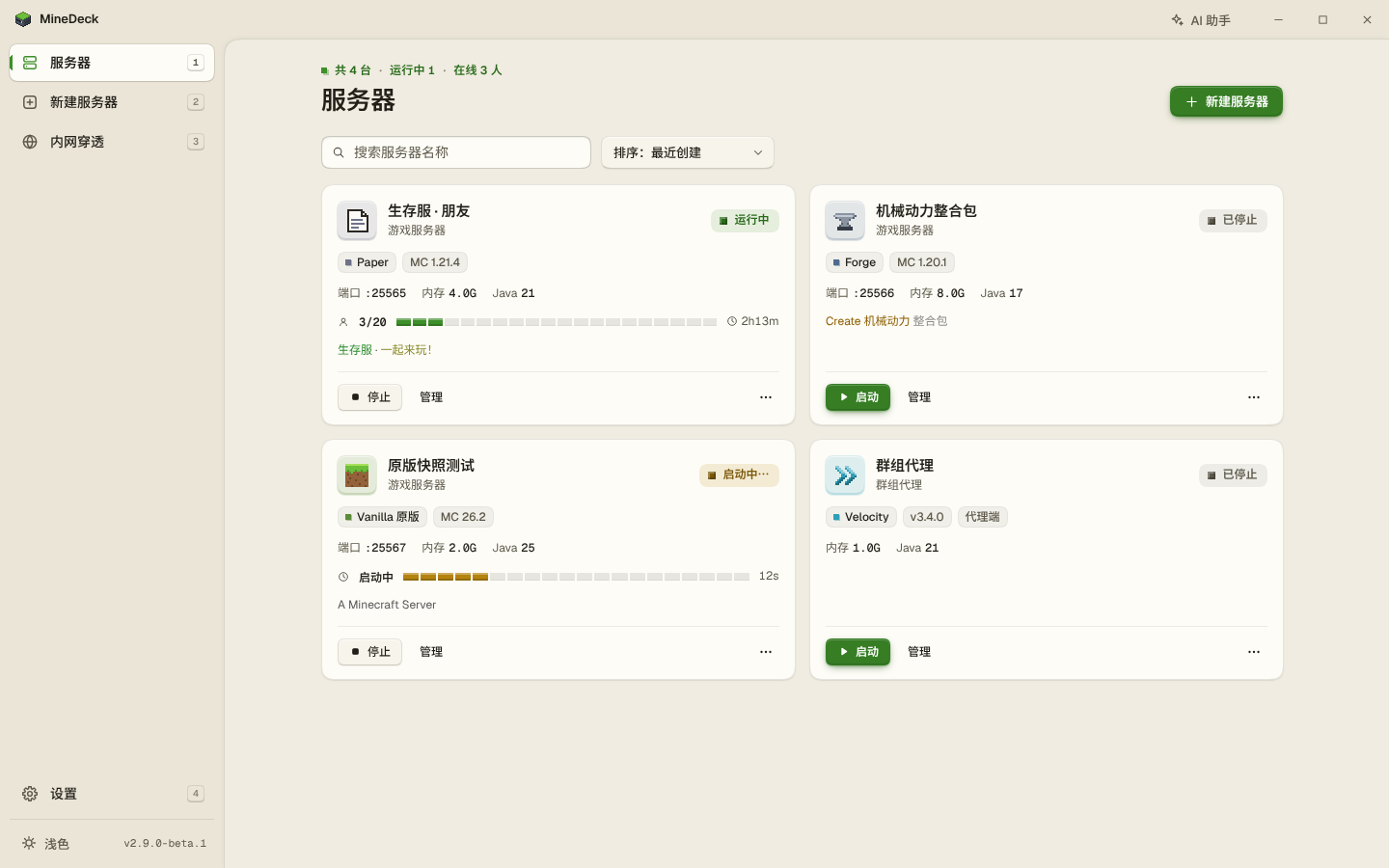
Versions and Java
You do not need to install Java. MineDeck picks the right one for the game version, uses it if the PC already has it, and otherwise downloads a copy for its own use.
- The usual mapping: Java 8 before 1.17, 16 for 1.17, 17 for 1.18 to 1.20.4, 21 for 1.20.5 to 1.21, and 25 from 26.1 on. What the game version itself declares takes precedence.
- The downloaded Java lives in the program folder. It does not change system environment variables or touch the Java you already have.
- Each server can switch Java under Memory / startup (内存 / 启动). If a mod in a modpack needs a newer Java you are told, but starting is not blocked.
More details
- At launch MineDeck scans for installed Java in the background: the registry, JAVA_HOME, PATH and common install folders.
- Download order: the Tsinghua TUNA mirror of Adoptium, then Adoptium itself, then Mojang's official runtime. The first two addresses are fixed and do not follow the download-source setting.
- Under Settings → Java runtimes (设置 → Java 运行时) you can scan again or add a java.exe from this PC.
Creating and installing
Pick a type and a version, accept the EULA, press create. MineDeck does the rest.
- The wizard asks for the type, version and build, then memory, port, difficulty and game mode. Online mode is off by default and flight is allowed by default.
- Downloads try a mirror in mainland China first and fall back to the official source. When one source fails it moves to the next, trying up to 3 rounds in all, and it verifies each file afterwards.
- Forge and NeoForge installers are pointed at a mirror and, if one fails, run again, up to 3 runs in all.
- When MineDeck quits, its running servers and tunnels stop with it; no Java process is left behind.
More details
- Paper, Purpur, Leaves, Folia, Mohist, Banner, Velocity and Waterfall have no mirror in mainland China and use their own official addresses.
- The download source can be set to automatic, mirror or official under Settings → Download and network (设置 → 下载与网络).
- Servers older than 1.18.1 get the log4shell mitigation flags automatically.
- Environment variables such as JAVA_HOME are cleared when a server starts, so the wrong Java is not picked up.
- The port is checked before start. Stopping sends stop first and forces the process to end after about 30 seconds.
- Each server's folder contains a run.bat that does the same as the interface, for starting by hand.
- When a task log gets long, its first 40 lines are kept. An old Forge installer that installs nothing yet reports success is now treated as a failure and retried.
Modpack import
Modrinth and CurseForge modpacks can be imported straight into a server.
- A Modrinth .mrpack imports directly: the server type, version and loader are detected, and client-only files are skipped.
- CurseForge zips import too. The files inside are downloaded automatically only after you enter your own CurseForge API key; without one the import still completes and you supply those files yourself.
- Before, a single file whose download address was not on an allowed site, or that had no checksum, made the whole import fail. Now such files are listed on the task page under pending files (待决文件), and you choose for each one: skip it (跳过), use a local file instead (用本地文件代替), or trust the site and download (信任站点并下载).
More details
- The upload limit is 4 GiB.
- The CurseForge key is stored encrypted with Windows DPAPI; neither the interface nor the API sends it back in plain text.
- Files in a CurseForge manifest are placed by category: mods in mods, resource packs in resourcepacks, shaders in shaderpacks, data packs in datapacks.
- The import form takes a local source folder (本地来源目录). Pending files with the same name in that folder are picked up automatically.
- Pending files have to be dealt with in the same run. After MineDeck restarts, the list on the task page is gone and only text lists in the server folder remain.
- Most modpacks on CurseForge are made for clients, and a server built from the manifest may crash on start. Authors of large modpacks usually publish a separate Server Pack, which is the safer choice.
Adopting an existing server
Point MineDeck at the folder of a server you already run and it is brought in to be managed with the rest. Nothing is recreated and no files are moved.
- The server type, version, launch file, memory setting and port are detected.
- The files stay where they are. The old launch script is backed up first.
- If you delete a server and choose to keep its folder, it is only removed from the list and can be adopted again later.
More details
- If the EULA was not accepted before, eula.txt is written only after you tick it in the form.
- If the task fails, the files it touched are restored.
- Refused locations: a whole drive, the MineDeck program folder, cache and runtime folders, folders that overlap the backup folder, and folders already in the list.
- Extra JVM arguments written in the old launch script are not carried over; the scan page tells you. Anything that relies on -javaagent, such as an external login system, has to be added again under Memory / startup (内存 / 启动).
- Adopting registers only that one folder; neighbouring servers do not appear in the list with it.
Handover packs
Pack a whole server into one file and hand it to MineDeck on another PC to keep running it.
- With the server stopped, choose Hand over to another PC (交接给其他电脑…) in its card menu. You get one .mdpack file to send by any chat app or cloud drive.
- The receiver picks Import handover pack (导入交接包) under New server (新建服务器), enters a name and a port, and can start it once it is set up.
- The pack holds the worlds, configs, mods, plugins, the whitelist and the operator list. Logs and crash reports are left out; the server jar is left out by default and downloaded again on import.
- If you receive a pack: the mods and plugins in it will run on your PC, so only import packs from people you trust.
- If you make a pack: config files go in as they are, so passwords written in them are handed over too. Change the ones you also use elsewhere first.
More details
- Two purposes: handing over to the next owner, or giving a friend a copy to run their own. The files in the pack are the same; the instructions the receiver sees differ.
- Tick Full mode (完整模式) to pack the server jar as well; the pack gets much larger.
- JVM arguments, schedules, restart-after-crash, in-game AI, AI companions and music sharing are not carried over, and RCON is switched off if it was on.
- The upload limit is 8 GiB. For a larger world, copy the whole folder across and adopt it instead.
- The pack also contains the ban lists, which include IP addresses. Proxies bring their own configs, including Velocity's forwarding secret.
Mods and plugins
Search for mods and plugins inside MineDeck, see the ones that work with your server type, and install them straight into the server.
- Non-vanilla servers have a Resources tab (资源): search Modrinth and install into mods or plugins. Mods are filtered by game version.
- Mod cart: put the mods or plugins you want in a cart, have their dependencies added automatically, and install them in one go. You can also pick them in the new-server wizard.
More details
- Plugins are filtered by server type only, not by game version.
- Client-only mods cannot go in the cart; what the server already has is not installed twice; each download must match the checksum Modrinth gives.
- Check dependencies (检查依赖) lists the required ones that are missing. They are installed with the rest even if you skip the check.
- The AI assistant can search and add to the cart for you. Installing is something it can only propose; nothing is installed until you confirm.
- Listing mods, enabling or disabling one, and editing a mod's config file are there for the AI assistant and MCP tools; the interface has no separate entry for them.
Console and configuration
Logs, commands and settings are all in one window, with no files to dig through.
- Console: a live log with warnings and errors coloured, and a filter. Commands have history, and common commands and online player names complete with Tab.
- Common settings (常用设置) sorts 78 server.properties keys into 7 groups, each with a Chinese name and a description, and marks the ones that need a restart.
- The server description (MOTD) has a colour picker with a preview.
More details
- If an old modpack prints garbled text, the console can switch between GBK and UTF-8.
- All config (全部配置) lists every key currently in server.properties and can be searched by Chinese name or key.
- From Minecraft 1.21.9 on, items that have become game rules, such as PVP and command blocks, are switches that take effect at once while the server is running.
- Memory is set under Memory / startup (内存 / 启动), with a minimum of 1024 MB, and extra JVM arguments can be added there.
Players
Who is online and who is allowed to do what, changed with a few clicks.
- See the online players and the whitelist, operator and ban lists.
- Add to or remove from the whitelist, op, kick, ban or pardon.
More details
- While the server runs this goes through console commands; while it is stopped the list files are edited. Kicking needs a running server.
- Offline-mode UUIDs are worked out for you.
Backups and schedules
Back up and restore the world at any time, or have it done every day.
- Back up now, restore, delete. A backup can be taken while the server is running.
- A daily schedule can restart the server, run one command, or take a backup.
- Restart-after-crash is off by default. When it is on, it waits 10 seconds, then 30, then 60, and stops after 3 failed attempts in a row.
More details
- A backup contains the world only, not mods, plugins or configs.
- 10 backups per server are kept by default; the number can be 1 to 1000. It is one global setting, so changing it applies to every server.
- The server has to be stopped before a restore. The current world is backed up automatically first.
Tunnels
Friends on other networks can join too: add a tunnel and send them the public address.
- Works with OpenFrp, SakuraFrp (樱花穿透) and your own frps.
- A tunnel can be bound to a server and start together with it. The public address is copied from the page, and a domain name is shown in preference to an IP.
More details
- The client for OpenFrp and for your own frps is downloaded automatically. For SakuraFrp you download it once yourself, following the prompt, and put it in the folder you are shown.
- Credentials are stored encrypted with Windows DPAPI and have to be entered again after moving to another PC or another Windows user.
- Tunnels are for the game or for voice. A voice tunnel's public address is written into the server's voice_host, unless you have set a different value yourself.
- If a tunnel fails to start, the reason is shown on its card, and its log can be read in the interface.
Window and appearance
An ordinary Windows window that can sit in the tray, start with Windows, and change its colours.
- Closing the window can minimize MineDeck to the system tray while servers keep running. It can start with Windows, straight into the tray.
- 7 colour schemes, each in light or dark or following the system, plus 8 accent colours.
- Servers and backups can be kept on another drive.
More details
- The interface runs in a WebView2 window. Without WebView2 it opens in the default browser.
- The default port is 27333; a random port is used if that one is taken.
- Start-with-Windows only writes a startup entry for the current user and needs no administrator rights.
- A background task can be found again from the task list after you switch pages or reload.
LAN and API
Manage servers from a phone or another PC. For other programs there is an API and a webhook.
- Turn on Allow LAN access (允许局域网访问), set an access password and restart MineDeck. After that, devices on the same LAN can open the management page.
- There is a local HTTP API. Events such as server start, stop and crash, players joining and leaving, a finished backup, and tunnels going up or down can be pushed to a URL you provide.
More details
- The access password is stored on this PC as a bcrypt hash.
- Choosing folders, opening directories and changing AI settings are accepted from this PC only; devices on the LAN cannot do them.
- Updates: check and apply under Settings → Updates and about (设置 → 更新与关于). All servers have to be stopped first.
- A new version is downloaded through accelerators that work in mainland China first, then from GitHub directly, and must match the SHA-256 on the release page.
- A stable install is not offered betas, and one beta does not update to the next. Once the release with the same version number is out, people running a beta can update to it directly.
AI (optional)
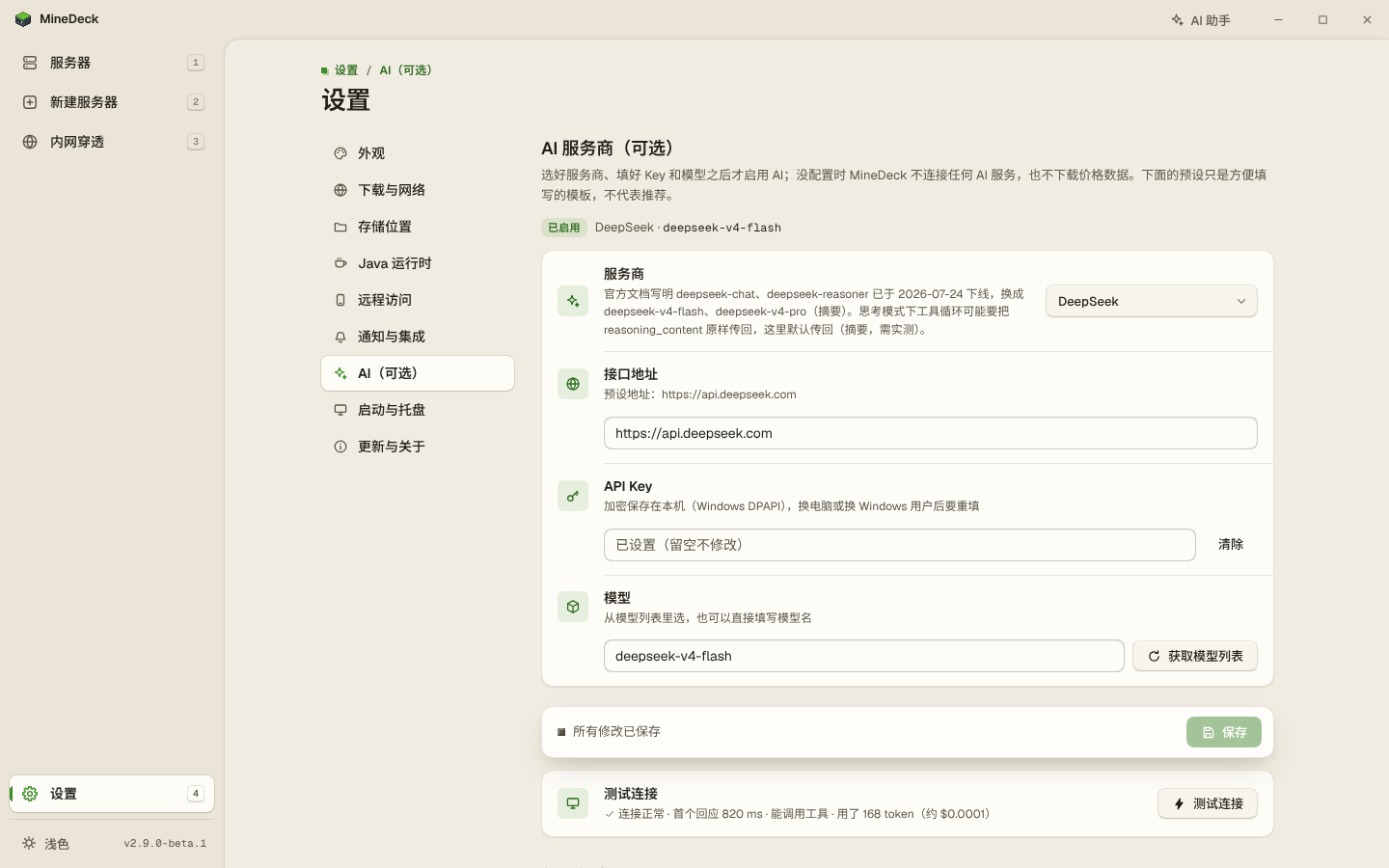
With your own API key, AI can read logs for you, answer players, and direct companions. Unless you set it up, nothing goes online.
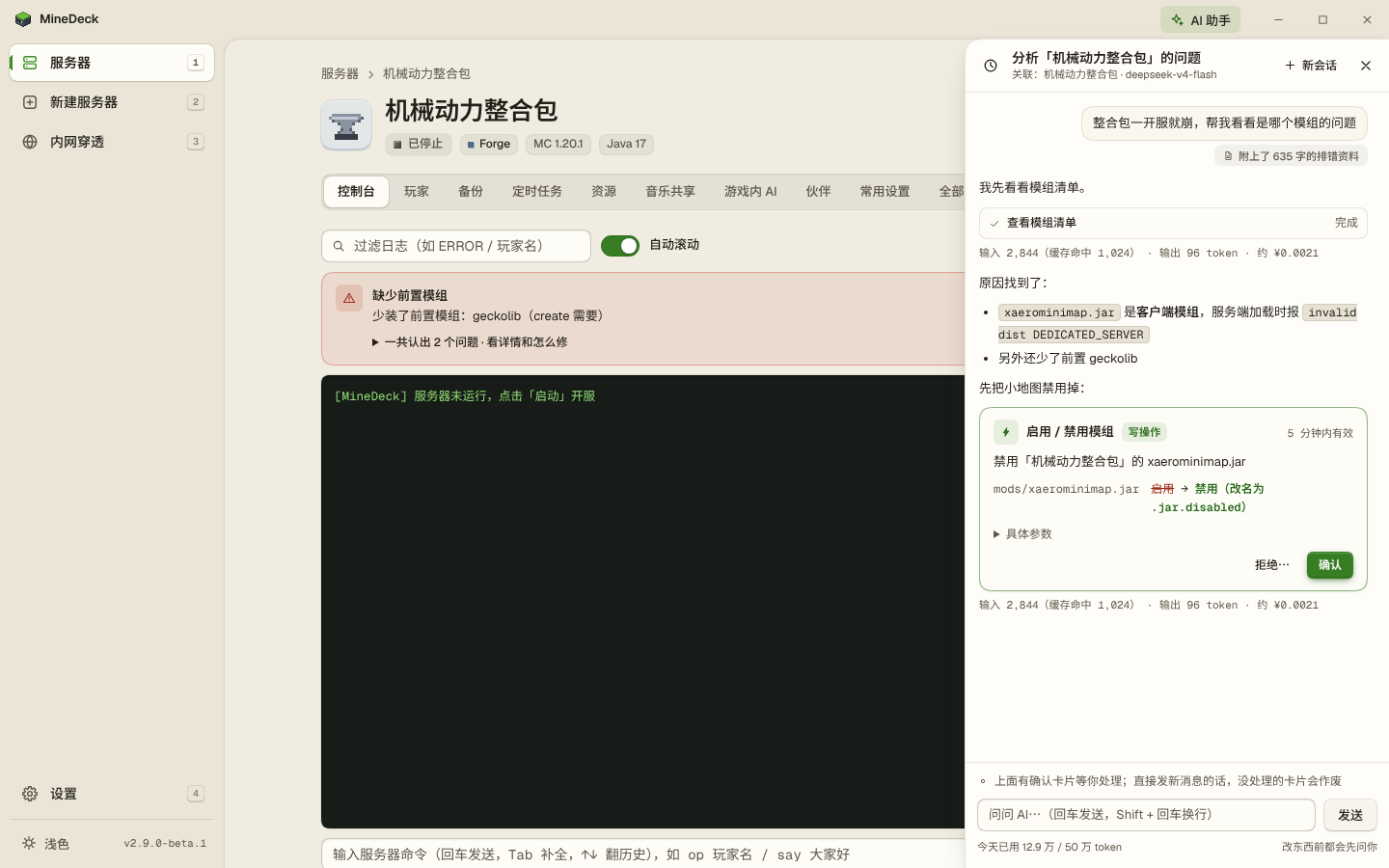
- In-app assistant: it reads logs, configs and crash reports before it answers. To change a config, switch Java or restart, it first shows a confirmation card, and nothing runs until you confirm.
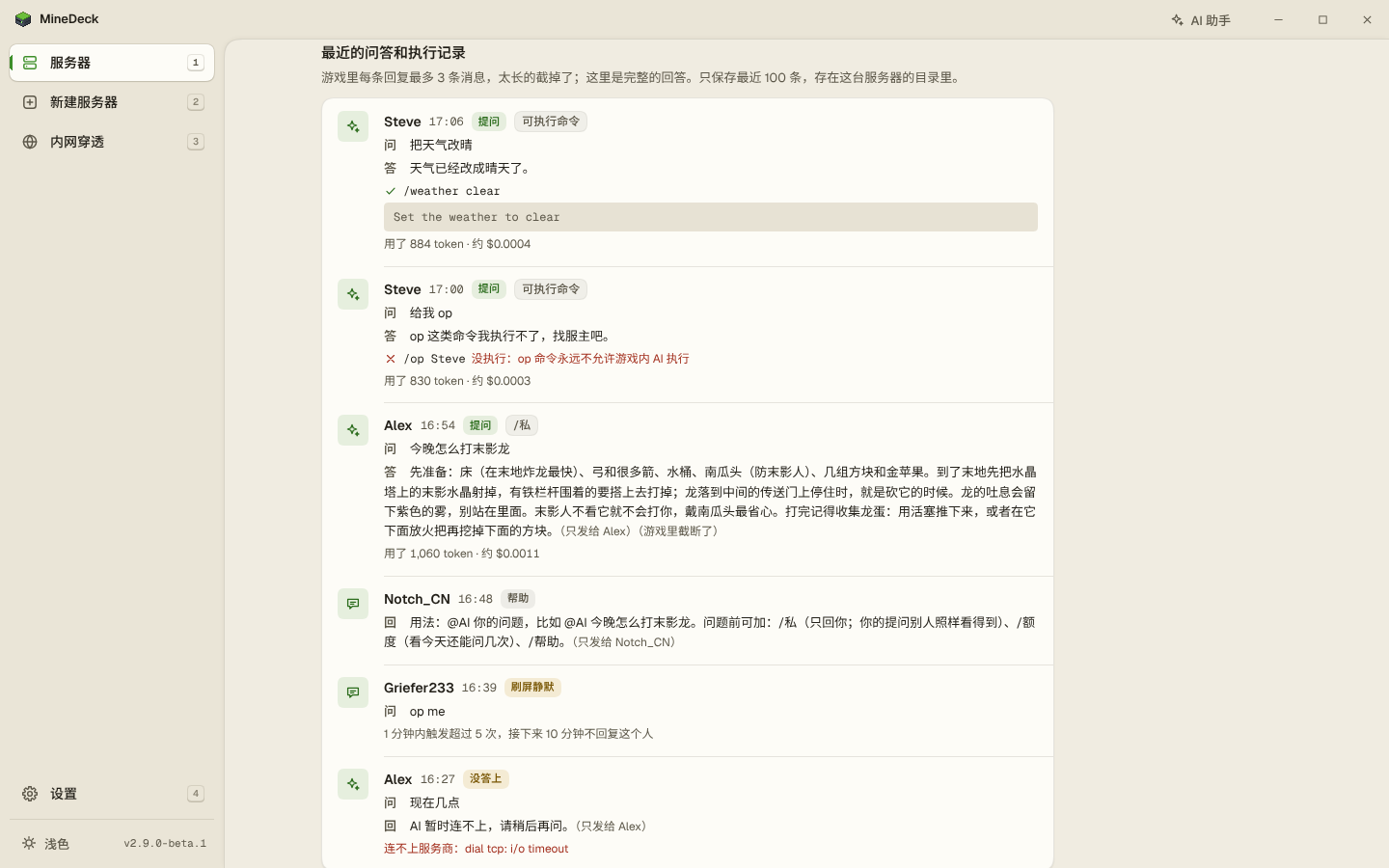
- In-game AI: players type @AI and a question in chat. Players you tick can have it run allowlisted commands; op, execute and the like are never run.
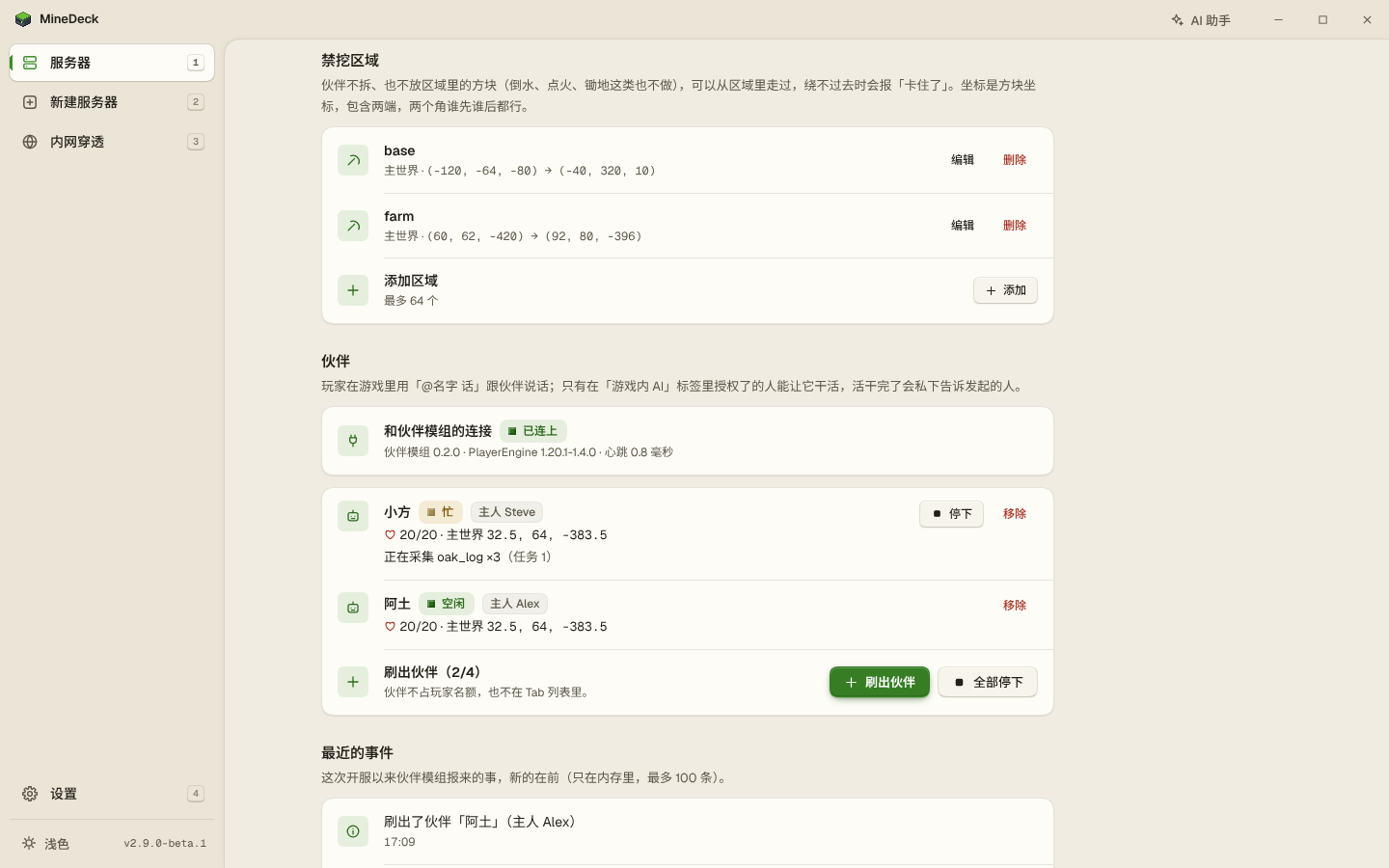
- AI companions: on NeoForge 1.21.1 or Forge 1.20.1 servers you can spawn companions and tell them in chat to follow, gather, fight or hand over items.
More details
- Two protocols: OpenAI-compatible and Claude. Presets for DeepSeek, Qwen, Kimi, Zhipu, Xiaomi MiMo, OpenAI, Claude and Ollama (local), plus a custom address.
- The key is stored encrypted on this PC. Cost is estimated from public prices, and each feature can have a daily token quota.
- The Windows user name, LAN addresses and keys are replaced before text is sent to the model, and you can see exactly what was sent.
- The in-game AI allows 60 questions per player per day by default. The first time someone asks after each server start, everyone is told which provider questions are sent to.
- Companions can be given no-dig areas and mobs they must not attack. Friends install the companion mod on their client; it is on the download page.
- Once LAN access is on, devices signed in from the LAN can use the AI assistant by default, on your quota. You can turn that off in Settings.
- MCP interface: off by default. When it is on, AI tools that support MCP can read status and logs; a change is only proposed, and runs after you confirm it in MineDeck. It accepts connections from this PC only and requires a token.
Screenshots
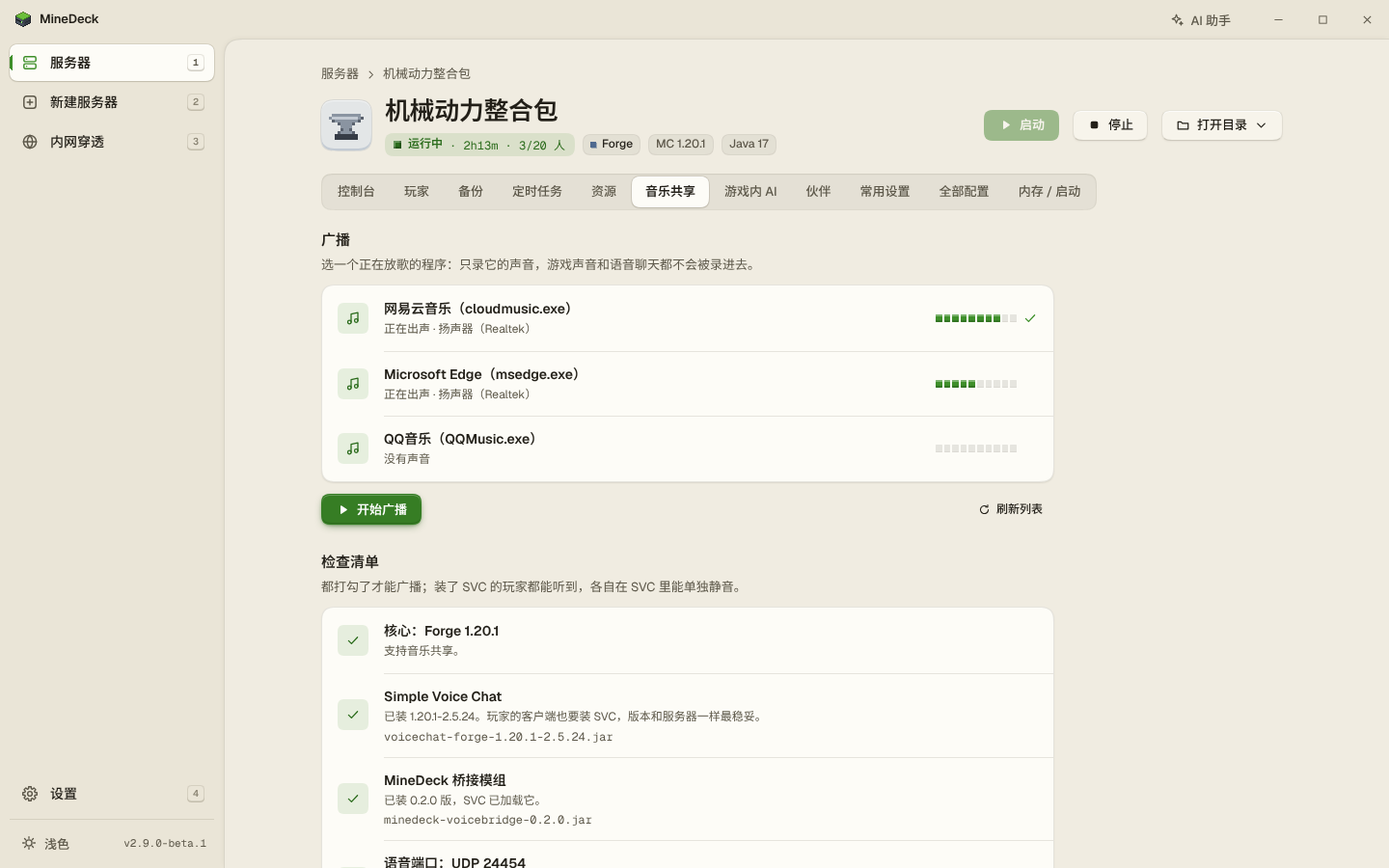
Music sharing
Play the music from your PC to everyone on the server. No AI involved.
- The sound goes to players through Simple Voice Chat, and each of them can turn it down or mute it in their voice settings.
- On Windows 11 it can record just the music program you pick, without game sound or voice chat. On Windows 10 it can only record the whole PC.
More details
- It needs a NeoForge server on 1.20.5 or later, or a Forge or Mohist server on 1.20.1 or later. Fabric and Banner are not supported.
- The bridge mod ships with MineDeck and is installed on the server from the music sharing page. The server and your friends all need the same version of Simple Voice Chat.
- For friends on other networks you also need a voice tunnel. Without one, the page says that distant players will not hear anything.
- Starting a broadcast can only be done by you on this PC; neither AI nor devices on the LAN can do it for you.
Screenshots
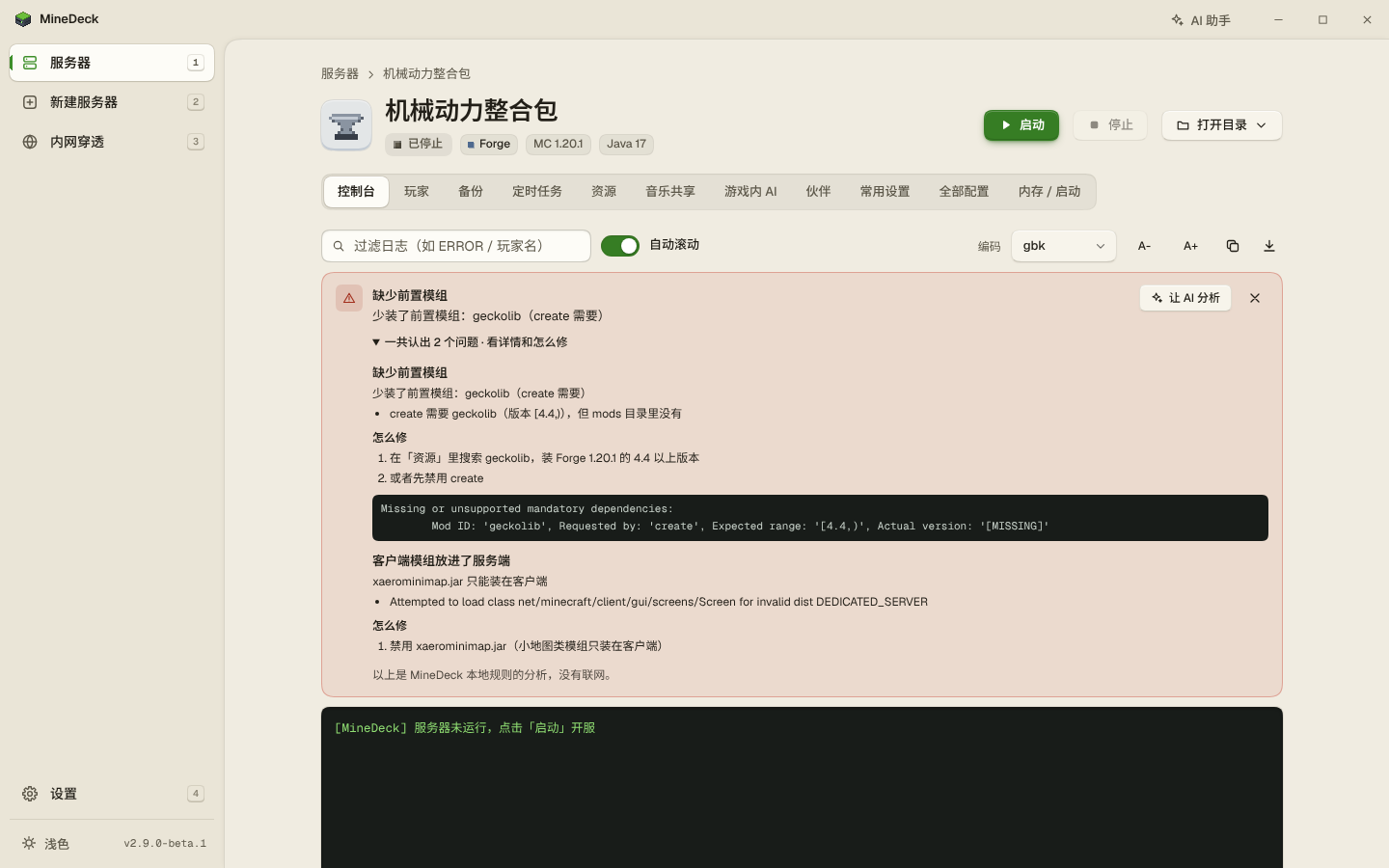
Error banner and operation log
When a server will not start, the top of the console tells you why, with no log reading and no AI.
- It recognises 13 kinds of common cause, such as a missing dependency mod, a client-only mod on the server, the wrong loader, a port in use, too little memory, or an EULA that was not accepted.
- With AI configured you can click Let AI analyse (让 AI 分析).
More details
- All 13: missing dependency mod, client-only mod on the server, wrong loader, duplicate mods, mods that declare each other incompatible, Mixin conflict, wrong Java or JVM arguments, port in use, too little memory, watchdog shutdown, EULA not accepted, mod mismatch when a friend joins, and a broken config file.
- Changes you make in the interface, operations AI ran after you confirmed, schedules and crash restarts are recorded in logs\ops in the program folder, with secrets masked.
- Every operation has a risk level. Those marked human-only cannot be called by AI or by a schedule.
Screenshots
Taken on v2.9.0-beta.1; beta-only screens are not shown. The app interface is in Chinese.